

Firmware Interface Control Elements
This section describes the main control elements and information panels of the miner firmware web interface. These elements provide quick access to device control, status monitoring, and diagnostics.
Top Control Bar
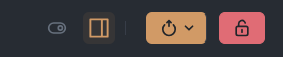
In the upper-right corner of the interface you’ll find the main quick-control elements.
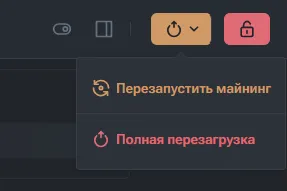
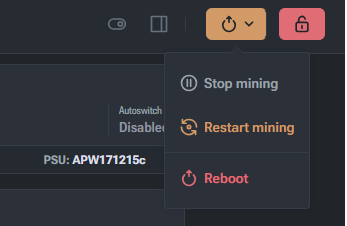
Reboot / Power Button
Used to manage restarts.
- Restart mining
Restarts only the mining process (cgminer / bminer):
- applied after pool changes;
- used when autotuning is stuck;
- does not affect networking or the controller.
- Reboot
Full device reboot:
- controller restarts;
- drivers reload;
- RAM is cleared.
Recommended after firmware updates or unstable behavior.
Interface Lock
- When locked, the interface works in read-only mode.
- After unlocking, all input fields and control buttons become available.
- Used to prevent accidental changes.
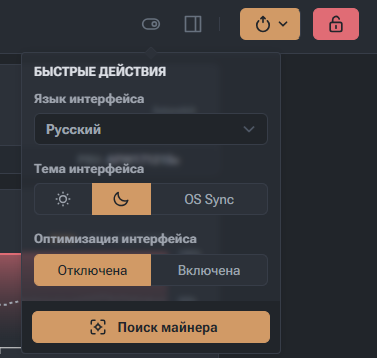
Quick Actions Panel
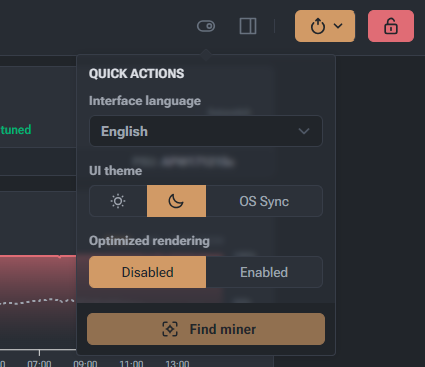
The Quick Actions panel allows you to adjust interface behavior without going into system settings.
Interface Language
- Select UI language (for example: English / Russian).
- Changes apply immediately.
UI Theme
Available modes:
- Light
- Dark
- OS Sync - automatically follows browser or OS theme.
Optimized Rendering
- Enabled - simplified graphics and animations.
Useful for:
- weak controllers;
- remote access;
- slow connections.
- Disabled - full visual effects with higher load.
Find Miner
- Automatically scans the local network to locate the miner.
- Useful when the IP address is unknown.
- Works via local network discovery.
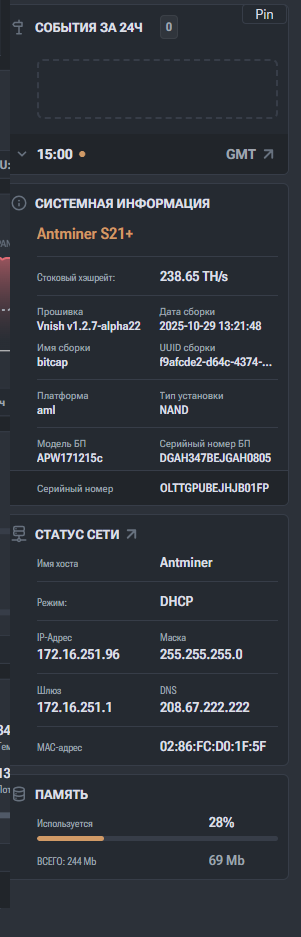
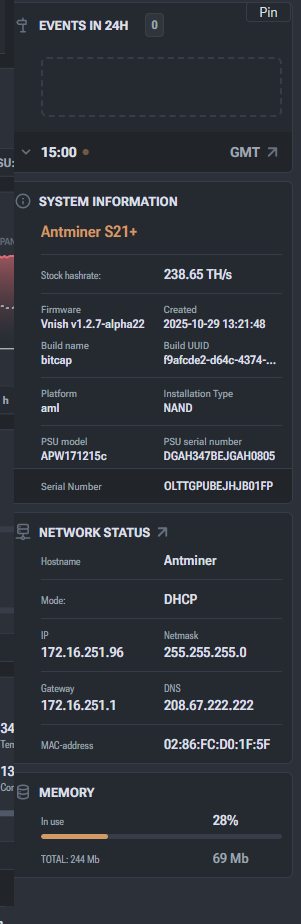
“Events in 24h” Panel
Displays system events recorded during the last 24 hours.
| Element | Description |
|---|---|
| Events in 24h | Number of recorded events (errors, restarts, stops). |
| Event area | List of recorded events (if any). |
| Time | Current system time (for example, GMT). |
| Pin | Pins the panel on screen. |
If there are no events, the device is running stably.
System Information
This panel provides a quick overview of the device hardware and firmware.
General Information
- miner model (for example, Antminer S21+);
- stock hashrate;
- firmware version and type;
- build name;
- build date and build ID.
Hardware Information
- controller platform (AML);
- installation type (NAND);
- PSU model and serial number;
- miner serial number.
Used for diagnostics, inventory, and support requests.
Network Status
Shows the current network state of the miner.
| Parameter | Description |
|---|---|
| Hostname | Device name on the network |
| Mode | DHCP or Static IP |
| IP Address | Current local IP |
| Netmask | Network mask |
| Gateway | Main router |
| DNS | Active DNS server |
| MAC address | Unique network identifier |
Used for network diagnostics and remote access.
Memory (RAM)
Displays controller memory usage.
| Parameter | Value |
|---|---|
| Used | Percentage of memory usage |
| Total | Total RAM size |
| In use | Actual memory consumption |
Low and stable memory usage indicates healthy firmware and services.
Note
If memory usage consistently exceeds 80-90%, it may indicate:
- firmware memory leaks;
- pool or networking issues;
- third-party scripts;
- excessive UI load.
Summary
Interface control elements provide:
- fast access to miner status;
- safe device control;
- convenient diagnostics;
- UI adaptation to operating conditions.
This is exactly the level of interface you expect from a mature custom firmware, not a checkbox UI pretending to be one.

This section describes the main control elements and information panels of the miner firmware web interface. These elements provide quick access to device control, status monitoring, and diagnostics.
Top Control Bar
In the upper-right corner of the interface you’ll find the main quick-control elements.
Reboot / Power Button
Used to manage restarts.
- Restart mining
Restarts only the mining process (cgminer / bminer):
- applied after pool changes;
- used when autotuning is stuck;
- does not affect networking or the controller.
- Reboot
Full device reboot:
- controller restarts;
- drivers reload;
- RAM is cleared.
Recommended after firmware updates or unstable behavior.
Interface Lock
- When locked, the interface works in read-only mode.
- After unlocking, all input fields and control buttons become available.
- Used to prevent accidental changes.
Quick Actions Panel
The Quick Actions panel allows you to adjust interface behavior without going into system settings.
Interface Language
- Select UI language (for example: English / Russian).
- Changes apply immediately.
UI Theme
Available modes:
- Light
- Dark
- OS Sync - automatically follows browser or OS theme.
Optimized Rendering
- Enabled - simplified graphics and animations.
Useful for:
- weak controllers;
- remote access;
- slow connections.
- Disabled - full visual effects with higher load.
Find Miner
- Automatically scans the local network to locate the miner.
- Useful when the IP address is unknown.
- Works via local network discovery.
“Events in 24h” Panel
Displays system events recorded during the last 24 hours.
| Element | Description |
|---|---|
| Events in 24h | Number of recorded events (errors, restarts, stops). |
| Event area | List of recorded events (if any). |
| Time | Current system time (for example, GMT). |
| Pin | Pins the panel on screen. |
If there are no events, the device is running stably.
System Information
This panel provides a quick overview of the device hardware and firmware.
General Information
- miner model (for example, Antminer S21+);
- stock hashrate;
- firmware version and type;
- build name;
- build date and build ID.
Hardware Information
- controller platform (AML);
- installation type (NAND);
- PSU model and serial number;
- miner serial number.
Used for diagnostics, inventory, and support requests.
Network Status
Shows the current network state of the miner.
| Parameter | Description |
|---|---|
| Hostname | Device name on the network |
| Mode | DHCP or Static IP |
| IP Address | Current local IP |
| Netmask | Network mask |
| Gateway | Main router |
| DNS | Active DNS server |
| MAC address | Unique network identifier |
Used for network diagnostics and remote access.
Memory (RAM)
Displays controller memory usage.
| Parameter | Value |
|---|---|
| Used | Percentage of memory usage |
| Total | Total RAM size |
| In use | Actual memory consumption |
Low and stable memory usage indicates healthy firmware and services.
Note
If memory usage consistently exceeds 80-90%, it may indicate:
- firmware memory leaks;
- pool or networking issues;
- third-party scripts;
- excessive UI load.
Summary
Interface control elements provide:
- fast access to miner status;
- safe device control;
- convenient diagnostics;
- UI adaptation to operating conditions.
This is exactly the level of interface you expect from a mature custom firmware, not a checkbox UI pretending to be one.
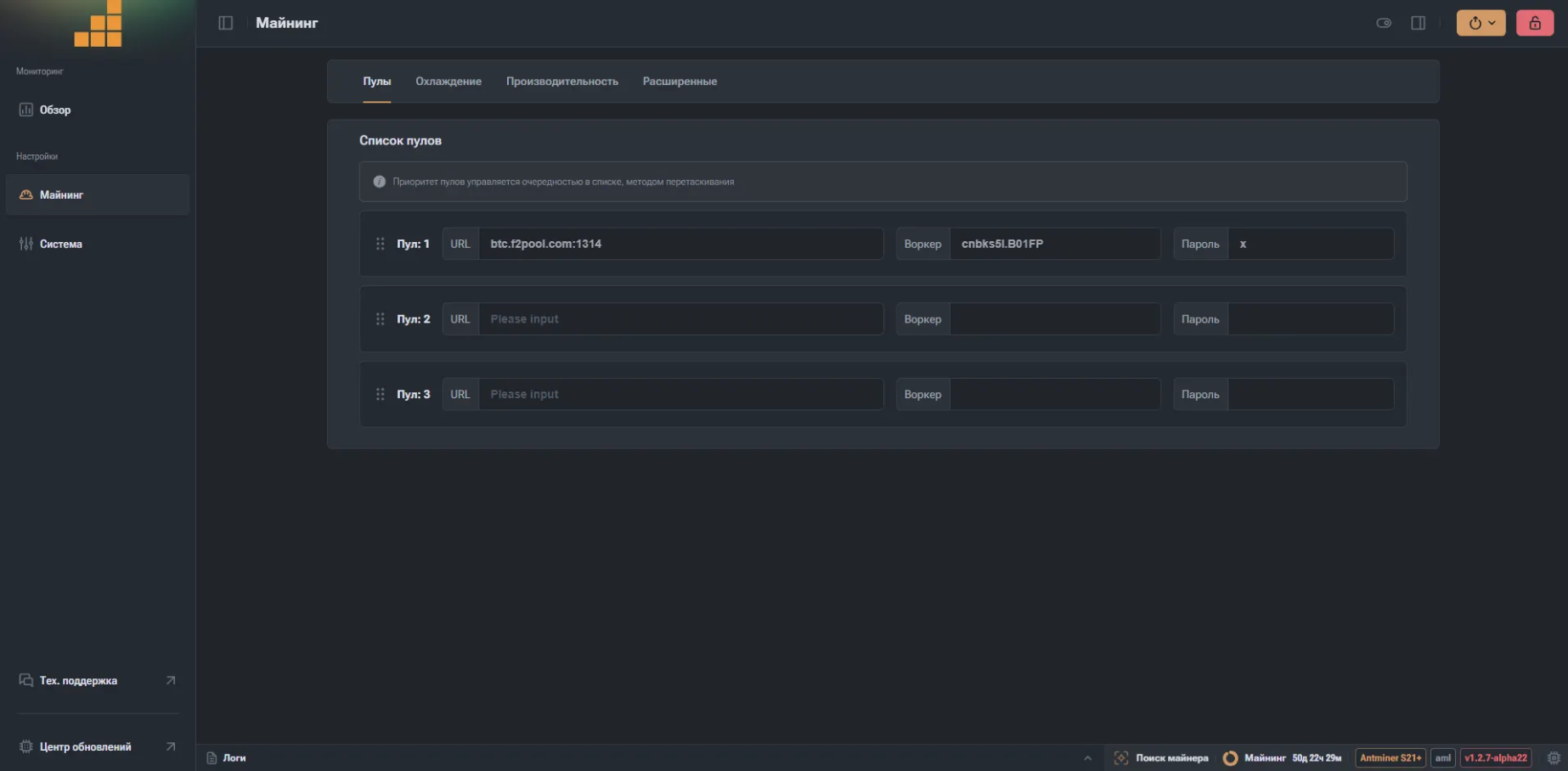
This screen is used to configure mining pools and control the order in which they are used.
Here you define the primary and backup pools, worker credentials, and authorization parameters.
Mining tabs
At the top of the section, the following configuration tabs are available:
- Pools – pool addresses and priority order.
- Cooling – cooling modes and fan control (auto, manual, immersion).
- Performance – frequency, voltage profiles, autotuning.
- Advanced – additional logic, protections, and experimental settings.
The currently open tab is Pools.
Pool list
This block shows the list of pools the miner can connect to.
Pool priority is defined by their order in the list.
- The miner always tries Pool 1 first.
- If it becomes unavailable, the miner switches to the next one.
- Pool order can be changed via drag and drop.
Pool 1 (primary)
| Field | Description |
|---|---|
| URL | Pool address and port (for example: btc.f2pool.com:1314). |
| Worker | Worker name, usually in the format account.worker. |
| Password | Worker password. For most pools, any value works (commonly x). |
This is the main pool the miner connects to by default.
Pool 2 and Pool 3 (backup)
- Used as fallback pools.
- Activated automatically if the primary pool is unavailable.
- Recommended usage:
- another server of the same pool, or
- a completely different pool.
If the fields are empty, the pool is considered inactive.