

Network Group Management
Import and Export of Groups
Quickly adding equipment lists and network configurations through import and export.
Hashcore Toolkit allows you to quickly add equipment lists and network configurations.
Import methods
- Interface: Click on the text "Import group list".
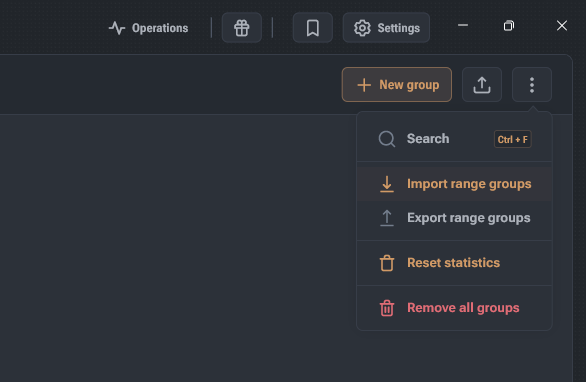
- Context menu: Open the screen menu and select "Import range groups".
- Group commands: Use the corresponding item in the group commands dialog.
- Drag&Drop: Drag the file directly into the application window or into the dedicated upload area in the import dialog.
Important: The Drag&Drop mechanism is not active if any modal window (dialog or confirmation) is open in the application.
Supported formats and files
- JSON: Configuration files generated by Hashcore Toolkit.
- Text files (.txt): Lists encoded in UTF-8 (system encoding is supported on Windows).
Data processing logic
- Name assignment: If a file is imported as a single group, it is assigned a name identical to the file name.
- Queue management: In the import dialog, you can remove any item from the list before completing the operation (trash icon).
- Name conflicts: If the imported group matches the name of an existing one, the old group will be overwritten. The system will display a warning with a list of conflicting names.
Exporting network groups
The function is intended for creating backups and transferring farm settings. Export is performed in JSON format (UTF-8 encoding).
Export options:
- Single group: Via the context menu of a specific group.
- Selected groups: Via the group commands dialog after selecting the required items.
- Entire list: Via the context menu of the main screen.
The export file includes: names, descriptions, range parameters, and individual settings of each group.