

Import and Export Groups
Hashcore Toolkit allows for quick addition of equipment lists and network configurations.
Import Methods
- Interface: Click on the "Import group list" text.
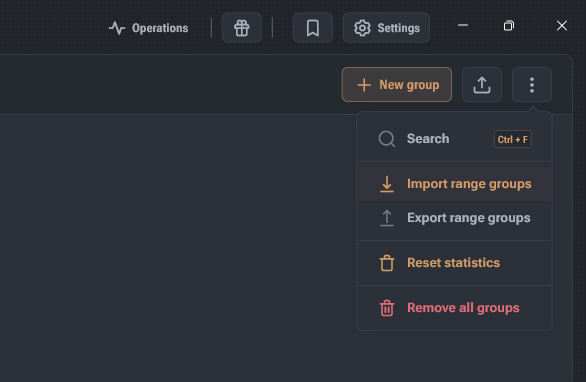
- Context Menu: Open the screen menu and select "Import Range Groups".
- Group Commands: Use the corresponding item in the group commands dialog.
- Drag&Drop: Drag and drop the file directly into the application window or into the dedicated upload area in the import dialog.
Important: The Drag&Drop mechanism is not active if any modal window (dialog or confirmation) is open in the application.
Supported Formats and Files
- JSON: Configuration files generated by Hashcore Toolkit.
- Text files (.txt): Lists in UTF-8 encoding (system encoding support is available for Windows).
Data Processing Logic
- Naming: If a file is imported as a single group, it is assigned a name identical to the file name.
- Queue Management: In the import dialog, any item can be removed from the list before completing the operation (trash can icon).
- Name Conflicts: If an imported group has the same name as an existing one, the old group will be overwritten. The system will display a warning with a list of conflicting names.
Export Network Groups
This function is designed for creating backups and transferring farm settings. Export is performed in JSON (UTF-8 encoding) format.
Export Options:
- Single Group: Via the context menu of a specific group.
- Selected Groups: Via the group commands dialog after selecting the desired objects.
- Entire List: Via the main screen's context menu.
The export file includes: names, descriptions, range parameters, and individual settings for each group.
Creating a Network Group and Working with Ranges
Network groups allow you to combine IP ranges and ports for mass scanning, statistics monitoring, and device management.
Group Settings Configuration
This tab is designed to manage access to miner configuration modification features. To activate, go to the